How to Secure WordPress Login: 15 Practical Ways to Protect wp-admin
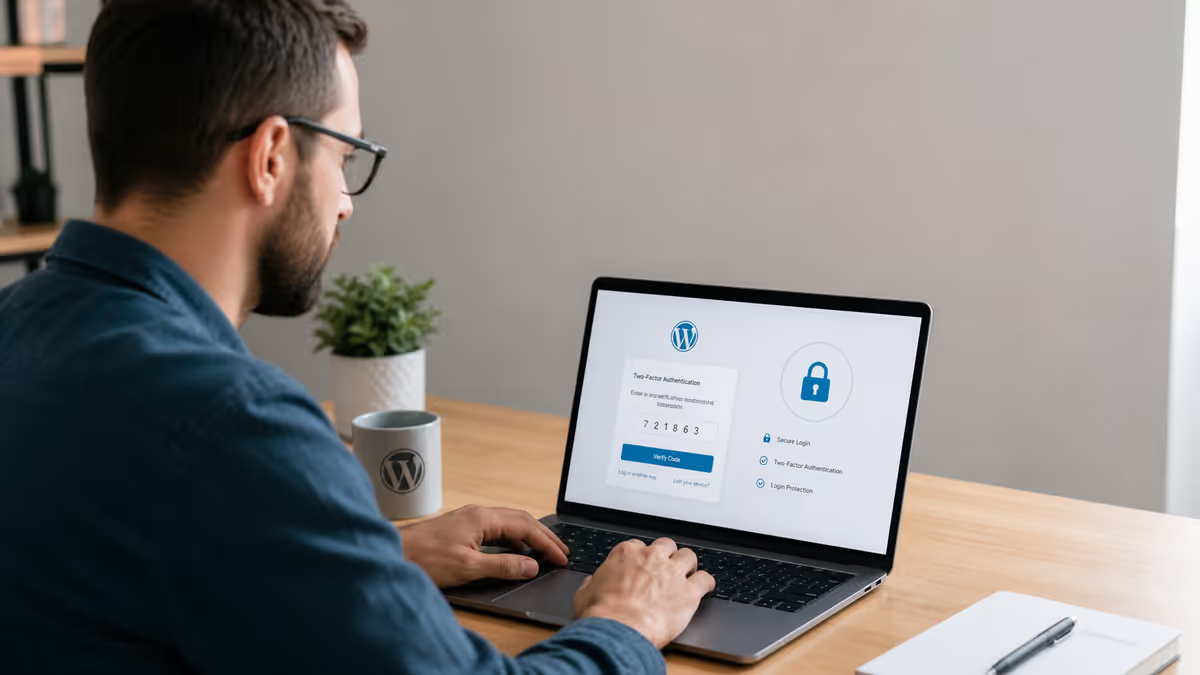
To secure WordPress login, use strong unique passwords, enable two-factor authentication for admins, limit login attempts, add CAPTCHA or Cloudflare Turnstile, restrict or disable XML-RPC, audit application passwords, remove unused admin users, protect /wp-admin, and monitor login activity. Hiding the login URL can reduce bot noise, but it should never be your only security layer.
Your WordPress login page is one of the most attacked parts of your website. By default, attackers already know where to find it: /wp-login.php and /wp-admin.
To secure WordPress login properly, you need more than a strong password. You should protect admin accounts with two-factor authentication, limit automated login attempts, block or restrict XML-RPC, review application passwords, remove unused admin users, protect your login page with Turnstile or CAPTCHA, and monitor for suspicious user activity.
I have cleaned thousands of hacked WordPress sites, and I see the same pattern again and again: the hack usually starts with weak access, outdated plugins, stolen credentials, hidden admin users, or a login endpoint that was never hardened.
This guide shows you how to secure your WordPress login page in a practical way, without breaking your website or locking yourself out. If you want broader protection beyond the login page, start with my full guide on how to secure a WordPress site.
Quick Answer: How Do You Secure WordPress Login?
To secure WordPress login:
- Use long, unique passwords for every admin account.
- Enable two-factor authentication for administrators, editors, shop managers, and developers.
- Remove old, unused, or suspicious admin users.
- Limit login attempts.
- Add Cloudflare Turnstile or CAPTCHA to the login form.
- Change the default login URL only as a noise-reduction layer.
- Disable or restrict XML-RPC if you do not use it.
- Review and revoke unused application passwords.
- Protect
/wp-adminwith server-side rules where appropriate. - Monitor login logs, failed attempts, new users, and role changes.
WordPress security is continuous work, not a one-time setting. WordPress’s own security documentation says good security involves planning, monitoring, maintenance, and recovery, and that keeping core, plugins, and themes updated is one of the most important security actions.
Why WordPress Login Security Matters
W3Techs reports that WordPress is used by 59.6% of websites with a known CMS and 42.2% of all websites as of April 29, 2026.
That popularity means attackers automate WordPress attacks at scale. They do not need to hate your business personally. They scan the internet for weak logins, outdated plugins, exposed XML-RPC endpoints, reused passwords, and abandoned admin accounts.
Patchstack’s 2025 mid-year vulnerability report found that most newly discovered WordPress vulnerabilities were in plugins, with plugins responsible for 89% of vulnerabilities in its dataset. This matters for login security because many admin takeovers do not begin at the login form. They begin through a vulnerable plugin, then the attacker creates or hides an admin user.
That is why this guide does not only cover /wp-login.php. It covers the full login attack surface.
The Real WordPress Login Attack Surface
When people say “secure WordPress login,” they usually mean the visible login page. But attackers may target several access paths.
| Area | Why it matters |
|---|---|
/wp-login.php |
The default login form. Bots attack it with brute force and credential stuffing. |
/wp-admin/ |
The admin dashboard. Should be protected from unauthorized access. |
xmlrpc.php |
Often targeted for brute-force and automated authentication attempts. |
| Application passwords | Used for API access. Helpful for integrations, dangerous if forgotten or leaked. |
| REST API / custom login forms | May expose custom authentication paths in headless or membership sites. |
| User roles | Old admins, shop managers, developers, and editors can become takeover points. |
| Sessions and cookies | If an attacker already has access, changing only the password may not be enough. |
| Hidden admin users | Malware can create admin accounts and hide them from the dashboard. |
The official WordPress brute-force guidance recommends strong passwords, 2FA, passkeys, rate limiting, CAPTCHA or Turnstile, XML-RPC protection, updates, monitoring, and preferably edge or WAF-level protection before traffic reaches the server.
1. Audit All Admin Users First
Before installing another security plugin, check who can already log in.
Go to:
WordPress Dashboard → Users → All Users
Look for:
- unknown administrator accounts
- old developer accounts
- agency accounts no longer needed
- admin users with personal emails you do not recognize
- users with strange registration dates
- editors or shop managers who no longer work on the site
For a simple business website, you usually do not need many administrators. Most users should have the lowest role they need.
For WooCommerce, be careful with:
- Administrator
- Shop Manager
- Editor
- custom membership roles
- support staff accounts
If a user does not need admin access, downgrade the role. If they no longer need access, remove the account.
If you want to understand how attackers abuse this, read my article on how hackers create hidden admin users in WordPress.
2. Do Not Trust the Dashboard Alone If You Suspect a Hack
This is where your real-world experience can make the article different from generic SEO content.
A normal WordPress dashboard can lie if the site is infected.
In real hacked sites, malware can create an admin user, hide it from the Users screen, adjust the visible admin count, and recreate the account if the owner deletes it. I explained in my article on how hackers create hidden admin users in WordPress that this kind of malware often hides in mu-plugins, fake system plugins, theme functions.php, plugin loaders, or database-injected code.
If you suspect the site is already compromised, check users from outside the normal dashboard.
Better places to check:
- phpMyAdmin
- hosting database tools
- WP-CLI
- server logs
- security plugin audit logs
With WP-CLI, you can start with:
wp user list --role=administrator --fields=ID,user_login,user_email,user_registeredIf the database shows an admin user that the dashboard does not show, you may be dealing with hidden admin malware.
3. Use Long, Unique Passwords
Weak passwords are still one of the easiest ways to lose a WordPress site.
Bad admin passwords look like:
- admin123
- companyname2026
- password@123
- P@ssw0rd
- the same password used for email, hosting, Fiverr, Upwork, or cPanel
Use a password manager and generate a unique password for every account.
NIST’s digital identity guidance says passwords used as the only authentication factor should be at least 15 characters, while passwords used with multi-factor authentication may be shorter but must still be at least 8 characters; it also recommends allowing passwords of at least 64 characters.
For WordPress admins, I recommend:
- 16–24+ characters
- unique per user
- stored in a password manager
- never shared by email or chat
- changed immediately after malware cleanup
- changed when a developer or agency leaves
A password alone is not enough, but a weak password makes every other layer weaker.
4. Enable Two-Factor Authentication for Admins
Two-factor authentication is one of the strongest ways to secure WordPress admin login.
With 2FA, the attacker needs more than the password. They also need a time-based code, passkey, hardware key, or another second factor.
OWASP says multi-factor authentication is one of the best defenses against password-related attacks such as credential stuffing and password spraying. WordPress’s own brute-force documentation also recommends enabling 2FA for administrators and privileged users.
Important: WordPress core does not include built-in 2FA, so you need a plugin, SSO provider, or identity provider integration. WordPress’s brute-force documentation states that 2FA must be added through a plugin or identity provider.
Good options include:
- Wordfence main plugin
- WP 2FA
- Two-Factor plugin
- SSO with enforced MFA
- passkey/WebAuthn plugins for advanced sites
If you want a practical walkthrough, see my guide on how to enable two-factor authentication in WordPress using Wordfence.
Important 2026 note: the standalone Wordfence Login Security plugin page says that plugin is being discontinued around July 1, 2026, and recommends using the full Wordfence plugin because the same features are included there. So in this article, recommend the main Wordfence plugin, not the standalone login-security plugin.
5. Enforce 2FA by Role, Not Just for Yourself
Many site owners enable 2FA only for their own admin account and forget everyone else.
That leaves the site exposed through:
- another administrator
- old developer account
- editor account with publishing access
- WooCommerce shop manager
- membership manager
- SEO agency account
- support account
At minimum, require 2FA for:
- Administrators
- Editors
- Shop Managers
- Developers
- SEO users with plugin access
- Any role that can upload files, edit themes, install plugins, or manage users
WP 2FA, for example, supports role-based 2FA policies, passkeys, TOTP apps, backup codes, setup grace periods, and WooCommerce-related options.
For client sites, give users a grace period, such as 3–7 days, then enforce 2FA. That avoids sudden lockouts while still improving security.
6. Save Backup Codes Before You Log Out
2FA is powerful, but misconfigured 2FA can lock you out.
Before logging out after setup:
- download backup codes
- store them in your password manager
- make sure at least two trusted admins have working 2FA
- test login in a private/incognito browser
- confirm server time is correct if using TOTP codes
Do not store backup codes inside WordPress media, email drafts, or public project management comments.
For agencies, create an emergency access policy before you enforce 2FA across many users.
7. Limit Login Attempts
By default, many WordPress sites allow repeated login attempts. That gives bots room to test passwords.
You can limit login attempts with:
- a security plugin
- host-level protection
- Cloudflare rate limiting
- web server rules
- WAF rules
Plugin-based limiting is easy, but edge or server-level protection is better during heavy attacks because the request can be stopped before WordPress and PHP have to process it. WordPress’s brute-force guidance makes the same point.
The Limit Login Attempts Reloaded plugin, for example, includes retry limits, lockout timing, email notifications, denied attempt logs, IP and username allow/deny controls, XML-RPC gateway protection, and WooCommerce login protection.
A practical beginner setting:
- 3–5 failed attempts
- 15–30 minute lockout
- longer lockout after repeated failures
- notify admin only when attacks are significant, not every single failed login
Do not set lockouts so aggressively that real customers or editors get blocked constantly.
8. Add Cloudflare Turnstile or CAPTCHA to the Login Page
Bots do not get tired. They can hit your login page thousands of times.
A CAPTCHA or Turnstile layer adds friction for automated attacks.
Cloudflare Turnstile is a CAPTCHA alternative that can be embedded without routing your whole site through Cloudflare and can run less-intrusive browser challenges. Cloudflare’s documentation explains that Turnstile can work without showing visitors a traditional CAPTCHA and supports managed, non-interactive, and invisible widget types.
For WordPress, the Simple Cloudflare Turnstile plugin can add Turnstile to login, registration, comments, WooCommerce My Account, WooCommerce checkout, and other forms.
For a step-by-step setup, see my guide on how to set up Cloudflare Turnstile on WordPress.
Recommended places to enable Turnstile:
- WordPress login
- password reset
- registration
- WooCommerce My Account
- WooCommerce checkout
- comments
- contact forms
- membership registration
Turnstile is not a replacement for 2FA. It reduces bot abuse. 2FA protects the account if the password is already known.
9. Change the Default WordPress Login URL, But Do Not Rely on It Alone
Changing the WordPress login URL can reduce automated bot noise because many bots only attack /wp-login.php and /wp-admin.
I explained in my guide on changing your WordPress login URL how a custom login slug can reduce automated attacks, especially when combined with stronger controls like 2FA and IP blocking.
Good custom login URL examples:
/client-login-portal//team-access//secure-entry/
Bad examples:
/login//admin//wpadmin//secret/
However, hiding the login URL is not true security by itself. WordPress’s brute-force documentation says obscuring the login URL can reduce noise but should not be your only defense.
Use login URL changes as one layer, not the main layer.
10. Protect /wp-admin Carefully
For private business sites, you can add another layer of protection around /wp-admin.
Options include:
- HTTP Basic Authentication
- IP allowlisting
- Cloudflare Access
- hosting control panel protection
- VPN-only admin access
- server-level rules
WordPress’s hardening documentation says server-side password protection around /wp-admin/ can add a second layer around admin files and the login screen, but it also warns that protecting /wp-admin/ may break some functionality such as admin-ajax.php.
So do not blindly password-protect all of /wp-admin on:
- WooCommerce stores
- membership sites
- LMS sites
- sites with frontend AJAX
- sites using page builders
- sites with logged-in customer dashboards
For those sites, use more targeted protection.
A safer approach:
- protect only login-related requests
- exclude
admin-ajax.php - test checkout, cart, forms, search, filters, and page builder saves
- keep emergency hosting access available
11. Disable or Restrict XML-RPC
xmlrpc.php is often forgotten, but attackers know it well.
WordPress’s brute-force documentation says XML-RPC is a frequent brute-force target, especially the system.multicall method, and recommends disabling it if you do not use it or restricting and rate-limiting it if you do.
You may need XML-RPC if you use:
- Jetpack
- WordPress mobile app
- some remote publishing tools
- certain legacy integrations
If you do not use any of those, disable it.
Apache example:
<Files xmlrpc.php>
    Require all denied
</Files>
Nginx example:
location = /xmlrpc.php {
    deny all;
    access_log off;
    log_not_found off;
}
Plugin-level option:
add_filter('xmlrpc_enabled', '__return_false');Server-level blocking is stronger because PHP does not need to process the request. But always test after disabling XML-RPC, especially if the site uses Jetpack or remote publishing.
12. Review WordPress Application Passwords
Application Passwords are useful, but they are often forgotten.
WordPress Application Passwords are revocable, per-application credentials for programmatic access, such as REST API integrations, scripts, mobile apps, and third-party services. They are not used for normal browser login through wp-login.php.
That means an attacker may not need your normal admin password if they can abuse an existing application password or create one after gaining access.
Check them here:
Users → Profile → Application Passwords
Review:
- old mobile app passwords
- old Zapier/Make/n8n integrations
- abandoned scripts
- unknown names
- credentials created by old developers
- passwords on admin accounts that no longer need API access
Delete anything you do not recognize.
For developers using WP-CLI:
wp user list --role=administrator
wp user application-password list USER_ID
After a malware cleanup or suspected account compromise, revoke old application passwords and recreate only the integrations you still need.
If you are troubleshooting login protection conflicts, this guide on application passwords being disabled by Wordfence may help.
13. Stop User Enumeration Where Practical
Attackers need usernames before they can test passwords.
WordPress usernames may leak through:
- author archive URLs
- REST API author data
- theme templates
- blog post author boxes
- exposed sitemaps
- error messages
- predictable admin names
Do not rely only on hiding usernames. But reducing username exposure helps.
Practical steps:
- do not use
adminas a username - use a public display name different from the login username
- disable author archives if you do not need them
- restrict REST user endpoints if your site does not use them publicly
- avoid login errors that confirm whether a username exists
This is not a replacement for 2FA. It is a small layer that makes automated guessing harder.
14. Invalidate Sessions After Suspicious Activity
If a site was hacked, changing the password is not always enough.
The attacker may already have:
- an active logged-in session
- a hidden admin user
- an application password
- a backdoor plugin
- stolen hosting credentials
- malware that recreates access
After suspicious login activity, do this:
- Change all admin passwords.
- Revoke application passwords.
- Remove unknown users.
- Rotate WordPress salts.
- Force all users to log in again.
- Check hosting, FTP/SFTP, cPanel/Plesk, database, and Cloudflare accounts.
- Review mu-plugins, theme files, plugins, and database for backdoors.
With WP-CLI, rotating salts can be done with:
wp config shuffle-saltsDo this only when you understand the effect: all users will be logged out.
If access keeps coming back after cleanup, read my guide on why WordPress malware keeps coming back.
15. Monitor Login Activity
You cannot secure what you never check.
Monitor:
- failed login attempts
- successful admin logins
- new user registrations
- role changes
- password resets
- plugin installations
- theme edits
- application password creation
- logins from unexpected countries
- unusual login times
Useful tools:
- Wordfence activity/security logs
- WP Activity Log
- hosting access logs
- Cloudflare Security Events
- server auth logs
- WooCommerce customer account logs
For access log checks:
grep "POST /wp-login.php" access.log | awk '{print $1}' | sort | uniq -c | sort -nr | head
grep "POST /xmlrpc.php" access.log | awk '{print $1}' | sort | uniq -c | sort -nr | head
Watch for:
- one IP making many attempts
- many IPs attacking one username
- repeated XML-RPC hits
- login attempts for admin, test, demo, support, webmaster
- successful login from an unfamiliar IP
Monitoring matters because many hacked sites still look normal on the frontend. In my guide on how to detect WordPress malware, I point out signs like new admin users, modified files, unexpected redirects, browser warnings, spam URLs, and strange database/plugin-folder code.
Recommended Login Security Setup by Site Type
| Site type | Recommended setup |
|---|---|
| Small business site | Strong passwords, 2FA for admins, WPS Hide Login, Turnstile, login limits, XML-RPC disabled |
| WooCommerce store | 2FA for admins/shop managers, Turnstile on login/register/checkout, careful rate limiting, no full /wp-admin lock without testing |
| Blog / content site | 2FA for admins/editors, remove old authors, protect login, disable XML-RPC if unused |
| Agency-managed site | Role-based 2FA, admin audit, activity logs, Cloudflare WAF, emergency recovery process |
| Headless WordPress | 2FA for dashboard users, careful REST/API auth, application password audit, restrict admin access |
| Previously hacked site | Full malware scan, hidden admin check, application password revocation, salts rotation, password reset, plugin/theme audit |
Cloudflare Rules for WordPress Login Protection
If your site uses Cloudflare, you can reduce attacks before they hit WordPress.
Example Cloudflare WAF expression for login POST requests:
(http.request.uri.path eq "/wp-login.php" and http.request.method eq "POST")Possible actions:
- Managed Challenge
- Rate limit
- Block after repeated abuse
- Skip trusted office IPs
- Challenge unfamiliar countries if your admin team is location-specific
Example XML-RPC rule:
(http.request.uri.path eq "/xmlrpc.php")If you do not use XML-RPC, block it. If you need it, rate-limit it.
Cloudflare’s WAF rate limiting documentation explains how rate limiting rules can protect login endpoints from brute-force attacks by applying actions once request thresholds are reached.
Do not copy rules blindly. Test carefully, especially on WooCommerce, membership, LMS, or multilingual sites.
What Not to Do
Avoid these common mistakes:
Do not depend only on changing the login URL
It reduces noise, but it does not stop a targeted attacker.
Do not install five overlapping security plugins
Overlapping firewall, CAPTCHA, login limit, and 2FA plugins can conflict and lock users out.
Do not keep old admin users
Old developer accounts are a common weak point.
Do not ignore XML-RPC
If unused, disable it. If used, restrict it.
Do not forget application passwords
They can remain active long after a developer or integration is gone.
Do not secure login after a hack and assume the site is clean
If malware already created hidden admins or fake plugins, login hardening alone will not remove the backdoor.
Do not use nulled themes or plugins
Nulled software often ships with backdoors. A strong login page will not save a site where the attacker already has code execution.
My Real-World Login Security Checklist
Here is the checklist I would use after cleaning or hardening a WordPress site:
- List all admin users.
- Remove or downgrade unnecessary admins.
- Check database directly if hidden admin malware is suspected.
- Change all admin passwords.
- Enforce 2FA for privileged roles.
- Save backup codes.
- Add login attempt limits.
- Add Cloudflare Turnstile or CAPTCHA.
- Change login URL to reduce bot noise.
- Disable or restrict XML-RPC.
- Review application passwords.
- Rotate salts after suspected compromise.
- Check mu-plugins, fake plugins, and theme functions.php.
- Update core, themes, and plugins.
- Remove unused plugins and themes.
- Monitor failed and successful logins.
- Confirm backups are clean and restorable.
When Login Security Is Not Enough
Sometimes the login page is not the real problem.
You may already be hacked if you notice:
- unknown admin users
- admin users that reappear after deletion
- redirects to spam or fake CAPTCHA pages
- new plugins you did not install
- suspicious files in mu-plugins
- strange JavaScript in theme files
- spam URLs in Google Search Console
- malware warnings from Google, McAfee, Norton, Avast, or hosting
- PHP files inside uploads
- modified index.php, wp-config.php, or .htaccess
In those cases, do not only install a login security plugin. First, find and remove the backdoor.
This is especially important because fake plugins and hidden admins are common persistence methods.
If that sounds familiar, start with how to detect WordPress malware. And if the site is already compromised, reinfected, or showing suspicious admin behavior, you may need a full WordPress malware removal service before login hardening alone will help.
Final Thoughts
The best way to secure WordPress login is to use layers.
Start with strong unique passwords and 2FA. Then add login attempt limits, Turnstile, XML-RPC protection, user audits, application password reviews, and monitoring.
Changing the login URL is useful, but it is not enough by itself. CAPTCHA helps, but it does not replace 2FA. A security plugin helps, but it does not replace good account hygiene. And if your site is already hacked, login hardening will not remove hidden admin users, fake plugins, or backdoors.
After fixing thousands of hacked WordPress websites, my advice is simple:
Secure the login page, but also secure every other path that can create, reuse, or hide admin access.
If your WordPress site already has suspicious users, malware warnings, redirects, or hidden admin behavior, start with a full malware inspection before relying on login hardening alone. If you want me to inspect and clean the site manually, you can hire me directly.
FAQ
How do I secure my WordPress login?
Use strong unique passwords, enable 2FA for admin users, limit login attempts, add Cloudflare Turnstile or CAPTCHA, disable or restrict XML-RPC, review application passwords, remove unused admins, and monitor login activity.
How do I make my WordPress login page secure?
Start with 2FA, login attempt limits, Turnstile or CAPTCHA, a custom login URL, and admin user cleanup. For stronger protection, add Cloudflare or WAF rate limiting and restrict XML-RPC.
How do I secure WordPress admin login?
Secure WordPress admin login by enforcing 2FA for administrators, removing unnecessary admin accounts, using long passwords, protecting /wp-admin, limiting login attempts, and monitoring successful admin logins.
Should I change the WordPress login URL?
Yes, changing the login URL can reduce automated bot traffic, but it should not be your only defense. Combine it with 2FA, rate limiting, CAPTCHA or Turnstile, and user audits.
Does WordPress include 2FA by default?
No. WordPress core does not include built-in two-factor authentication. You need a 2FA plugin, SSO provider, or identity provider.
Is CAPTCHA enough to protect WordPress login?
No. CAPTCHA or Turnstile can reduce bot attacks, but it does not protect you if an attacker already has a real password. Use 2FA as the main account-protection layer.
Should I disable XML-RPC in WordPress?
Disable XML-RPC if you do not use Jetpack, the WordPress mobile app, or remote publishing tools. If you need XML-RPC, restrict and rate-limit it.
What are WordPress application passwords?
Application passwords are revocable credentials used for API access by apps, scripts, or integrations. They cannot log into the normal wp-admin login form, but they should still be reviewed and revoked if unused.
Why do hackers create hidden admin users?
Hackers create hidden admin users to keep access after the site owner changes passwords or removes visible malware. Some malware hides the user from the WordPress dashboard, so checking the database directly is safer.
What should I do if I already see unknown admin users?
Do not only delete the user. First, find the code or plugin that created it. Then remove the backdoor, delete the unauthorized user, rotate passwords, revoke application passwords, rotate salts, and patch the original entry point.