WordPress 403 Lockout: Every Way Hackers Block Your wp-admin (And How to Fix Each One)
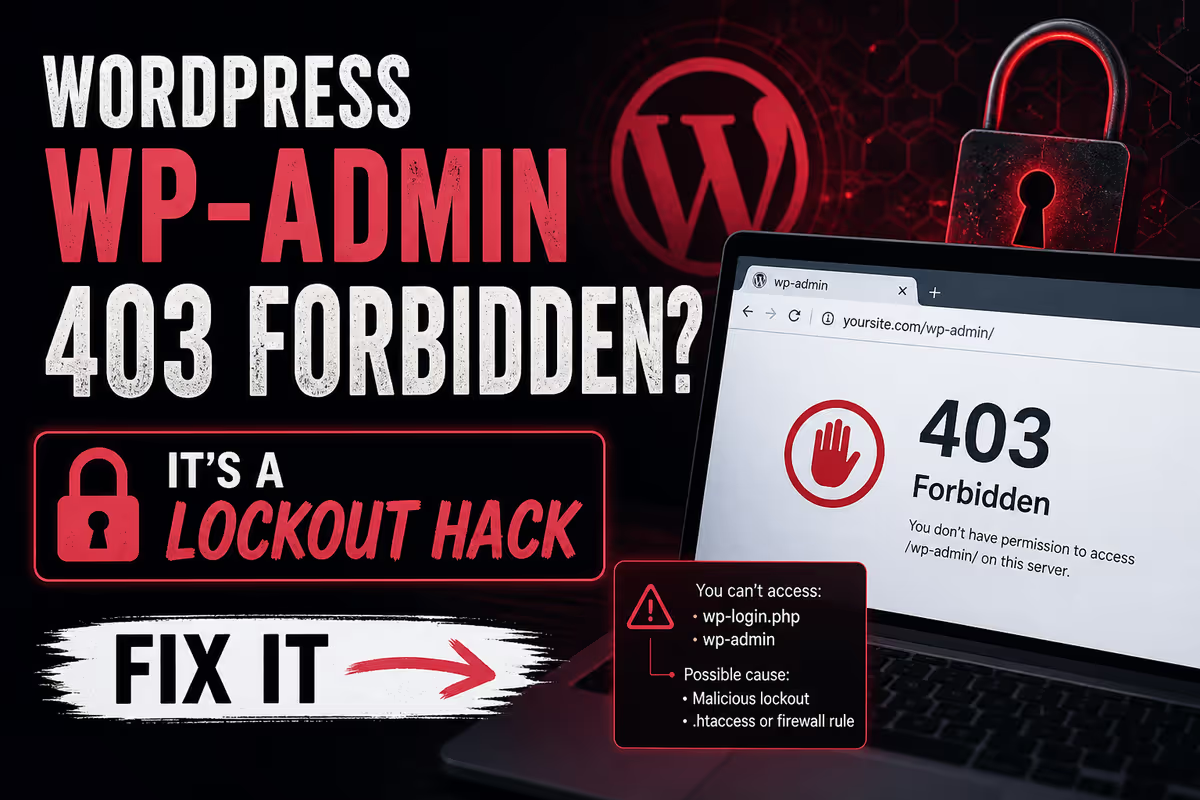
If your WordPress site is suddenly throwing a 403 Forbidden error when you try to load wp-admin or wp-login.php, you’re almost certainly hit by a lockout hack — an attacker has dropped a malicious .htaccess file into your WordPress directory that tells Apache to block PHP files from running. Because your login page is a PHP file, the server refuses to load it. The fix is to access your site through FTP or your host’s File Manager, locate and remove the malicious .htaccess (or replace it with a clean one), and then perform a full malware cleanup — because the lockout is only the visible symptom of a deeper compromise.
Quick Answer: WordPress wp-admin showing 403 Forbidden?
- What it is: a malicious
.htaccessfile (usually inside/wp-admin/or the site root) blocking PHP execution - Why it happens: attackers use it to keep you locked out while they keep exploiting the site from the inside
- How to fix it: connect via FTP or File Manager, remove or replace the malicious
.htaccess, then run a full malware cleanup - What you must not skip: the lockout is one symptom — the malware that placed it is still on your server
- Common lockout patterns: PHP execution block, IP allowlist, user-agent block, redirect-to-fake-login, basic auth injection
You go to log in to your WordPress dashboard at yoursite.com/wp-admin, but instead of the familiar login screen you get a stark, frustrating message: 403 Forbidden.
It’s one of the most disorienting moments in WordPress site ownership. The site might still load on the front end. Other admins in your team might still be locked out the same way. Your hosting account is technically “fine” — files exist, the database is there, the domain is pointed correctly. But you can’t get in.
In my experience cleaning more than 4,500 hacked WordPress sites since 2018, the single most common cause of this exact 403 pattern is a malicious .htaccess file placed by an attacker. This guide walks you through every variant I see in the wild, how to identify which one hit your site, and how to get back in safely without making the infection worse.

Why Hackers Lock You Out of Your Own WordPress Site
It seems counterintuitive at first. Why would an attacker waste effort blocking you from your dashboard? They’re already inside. Wouldn’t they want to stay invisible?
The answer is that locking the legitimate owner out is a deliberate strategic move, and it serves the attacker in several ways at once:
- It prevents cleanup. If you can’t reach the dashboard, you can’t see infected plugins, rogue admin users, spam pages, or backdoors hidden in your media library.
- It buys them time. A locked-out site can keep sending spam, redirecting traffic, hosting phishing pages, or attacking other sites for days before anyone takes effective action.
- It blocks updates. If you can’t log in, you can’t update WordPress core, plugins, or themes — so the original entry-point vulnerability stays open and the attacker keeps re-entering.
- It funnels you into mistakes. Most non-technical owners react by emailing their host, restoring random backups, or deleting files in panic. All of those make a clean recovery harder.
This is why a 403 on wp-admin should not be treated as a “WordPress error to fix.” It should be treated as a compromise indicator until proven otherwise.
The 6 Lockout Patterns I See Most Often
The 403 error itself looks identical to the user no matter what’s causing it, but the underlying malicious code can take very different shapes. Here are the six patterns I encounter most often during WordPress malware cleanups, with real code samples for each.
Pattern 1: Block All PHP Inside /wp-admin/
This is the classic. The attacker drops an .htaccess file directly inside the /wp-admin/ folder containing this kind of rule:
<FilesMatch "\.(py|exe|php|PHP|Php|PHp|pHp|pHP|pHP7|PHP7|phP|PhP|php5|suspected)$">
Order allow,deny
Deny from all
</FilesMatch>
Two important things to notice:
- The casing variations are deliberate. On case-insensitive filesystems Apache will match
.phpregardless of case anyway, but the attacker lists all of them to be sure their rule fires across server configurations. - A clean WordPress install does not ship an
.htaccessfile inside/wp-admin/. If you see one there, treat it as malicious until proven otherwise.
When this rule is active, every request for a PHP file inside the admin area — including wp-login.php, admin.php, and admin-ajax.php — gets a 403 from Apache. That’s the lockout.
Pattern 2: Site-Wide PHP Block With a Backdoor Allowlist
The more aggressive version of Pattern 1. Instead of being limited to /wp-admin/, the attacker plants the same denial rule at the site root and pairs it with an allowlist of attacker-controlled backdoor files:
<FilesMatch "\.(py|exe|php)$">
Order allow,deny
Deny from all
</FilesMatch>
<FilesMatch "^(index\.php|lock360\.php|wp-l0gin\.php|wp-the1me\.php|wp-scr1pts\.php|admin\.php|mah\.php|jp\.php|ext\.php)$">
Order allow,deny
Allow from all
</FilesMatch>
This rule says: “block all PHP, except this short list of files.” Some entries look almost legitimate (index.php, admin.php) so the rule doesn’t completely break the site. Others are obvious backdoors disguised with lookalike characters — wp-l0gin.php uses a zero, wp-the1me.php uses a “1” instead of an “i”, and so on.
This pattern is especially common on shared hosting accounts where the same .htaccess gets duplicated into hundreds of folders. I broke down a real example with 1,162 infected files in this Bluehost lockout case study.
Pattern 3: IP Allowlist — Only the Attacker Can Reach wp-admin
Less obvious, more elegant. The attacker drops this into /wp-admin/:
Order Deny,Allow
Deny from all
Allow from 203.0.113.45
Where 203.0.113.45 is their IP. Anyone else hitting wp-admin gets a 403. The attacker themselves walks straight in.
What makes this dangerous is that to a casual visual scan it doesn’t look malicious — it looks like a security hardening rule. Some site owners assume a previous developer added it and leave it alone. If you find an IP allowlist in your /wp-admin/ .htaccess and you don’t recognize the IP, treat it as a backdoor.
Pattern 4: User-Agent Block
A more sophisticated lockout that targets human visitors specifically:
RewriteEngine On
RewriteCond %{HTTP_USER_AGENT} (Chrome|Firefox|Safari|Edge|Mozilla) [NC]
RewriteCond %{REQUEST_URI} ^/wp-(admin|login\.php) [NC]
RewriteRule .* - [F,L]
This rule tells the server: “if the visitor is using a normal web browser and they’re trying to reach wp-admin or wp-login.php, return 403 (forbidden).” The attacker can still hit those pages with curl, custom scripts, or a non-standard user-agent string that isn’t on the block list.
I see this pattern most often on sites that are being used as part of a larger botnet — the attacker wants to keep automated access alive while making the dashboard unreachable from any browser.
Pattern 5: Redirect wp-login to a Fake or Malicious Page
Not technically a 403, but worth covering because it shows up in the same searches and is often confused with one. Instead of denying access, the rule redirects the request:
RewriteEngine On
RewriteCond %{REQUEST_URI} ^/wp-login\.php [NC]
RewriteRule .* https://attacker-controlled.example/fake-login.php [R=302,L]
When this is active, anyone trying to reach the WordPress login page gets bounced to a phishing clone designed to harvest credentials. Some WordPress security plugins or browsers will then return a 403 / blocked page warning, which is what users experience.
If your wp-login is “going somewhere weird” or showing a security warning instead of a clean 403, this is the pattern to suspect.
Pattern 6: HTTP Basic Auth Injection
The sneakiest one. The attacker injects this into /wp-admin/.htaccess:
AuthType Basic
AuthName "Restricted Area"
AuthUserFile /home/youruser/.fake-passwd
Require valid-user
This adds a second authentication layer — an Apache-level password prompt — before WordPress’s own login page even loads. The attacker controls the credentials in .fake-passwd. You don’t.
The result depends on the browser: some show a credential prompt that you can’t satisfy and eventually return 403; others fail straight to the 403 page. Either way, you’re locked out before you ever see WordPress.
How to Identify Which Lockout Pattern Hit Your Site
Before you delete anything, take 60 seconds to figure out which variant you’re dealing with. The cleanup is essentially the same across patterns, but knowing which one is active tells you a lot about what else the attacker did to your server.
- Open FTP / SFTP or your host’s File Manager (cPanel, Plesk, etc.)
- Navigate to your WordPress installation root (usually
public_html,www, or your domain folder) - Open the
.htaccessfile in the root and look for any of the patterns above - Open the
/wp-admin/folder and check whether an.htaccessfile exists there at all (a clean WordPress install does not have one in this folder) - If your hosting account has multiple sites or subdomains, check those too — the same infection commonly spreads across the account
If you find an .htaccess file inside /wp-admin/ on a default WordPress install, it is almost certainly malicious. If you find one in the root and it contains rules you didn’t write, treat it as compromised.
How to Regain Access (Step by Step)
Once you’ve identified the pattern, the recovery is straightforward — but the order matters. Don’t skip steps.
Step 1: Take a snapshot before you change anything
Download a copy of the malicious .htaccess file to your local machine before deleting it. You’ll want it later for two reasons:
- It’s evidence of the attack — useful if you have to involve your host or a security professional
- It often contains clues (filenames, IP addresses, redirect targets) that help locate the rest of the malware
Step 2: Replace, don’t just delete
If the malicious file is in /wp-admin/, you can simply delete it — clean WordPress doesn’t need one there.
If the malicious file is in your root .htaccess, do not just delete it. WordPress relies on the root .htaccess for permalinks. Replace it with the standard WordPress block:
# BEGIN WordPress
<IfModule mod_rewrite.c>
RewriteEngine On
RewriteBase /
RewriteRule ^index\.php$ - [L]
RewriteCond %{REQUEST_FILENAME} !-f
RewriteCond %{REQUEST_FILENAME} !-d
RewriteRule . /index.php [L]
</IfModule>
# END WordPress
Step 3: Try to log in
Reload yoursite.com/wp-admin in a fresh browser tab (or incognito window to avoid cached errors). If the lockout was the only issue, the login page should now load.
Step 4: Force every session out
The attacker may already have an active admin session. Once you can reach the dashboard, immediately rotate your WordPress security keys (the salts in wp-config.php). This invalidates every active login on the site, including any the attacker is sitting on.
.htaccess only restores your access. The malware that placed it is still on your server. Stopping at this step almost guarantees the lockout will be back within hours or days. Treat the steps below as mandatory, not optional.What to Clean After You’re Back In
Removing the lockout layer is like opening the front door after a break-in. The intruder is still inside the house. Here’s the cleanup I run on every WordPress site after this kind of attack:
- Check for unknown admin users. Go to Users → All Users and filter by Administrator role. Delete any account you don’t personally recognize. Hidden admins are one of the most common reinfection routes — I broke this down step by step in how to find and remove hidden admin users in WordPress.
- Look for suspicious files in
wp-content/. Pay special attention to fake plugin folders, recently modified theme files, and any PHP file with a name likewp-l0gin.phporlock360.phpfrom the patterns above. - Reinstall WordPress core, themes, and plugins from clean sources. Don’t trust visual inspection — overwrite the files. Throw away anything nulled or cracked.
- Scan the database. Lockout malware almost always travels with database injections. Check
wp_options,wp_users, andwp_postsfor foreign content. My walkthrough on scanning and cleaning your WordPress database for malware covers exactly what to look for. - Check scheduled tasks (cron). If a hidden cron is recreating the malicious
.htaccessevery hour, your “fix” won’t last. - Rotate every credential. WordPress admin, hosting cPanel, FTP/SFTP, the database user, and any email address that received password resets during the compromise window.
For a complete, ordered post-cleanup checklist, see what to do after fixing a hacked WordPress site.
Other (Non-Malware) Reasons wp-admin Might Show 403
Most of the time when I’m called in, the 403 is malware. But for completeness, these are the legitimate causes worth ruling out:
- Incorrect file permissions. If
wp-admin/is set to something restrictive like 700 instead of 755, Apache may refuse to serve files from it. - A security plugin lockout. Wordfence, iThemes Security (now Solid Security), All In One WP Security, and others can lock an IP out after failed login attempts. If only your IP gets 403 and others can log in, this is likely.
- ModSecurity rules at the host level. Some shared hosts run aggressive web application firewall rules that occasionally false-positive on legitimate admin requests. Your hosting support can confirm.
- A genuine
.htaccessrule you forgot about. If a previous developer added IP restrictions or basic auth to the admin area for legitimate hardening reasons, those can fire when your IP changes (new ISP, working from a coffee shop, traveling, etc.).
A quick way to differentiate: if you’ve recently noticed other symptoms — slowness, unexpected admin emails, spam pages indexed in Google, hosting warnings — assume malware. If the 403 appeared completely in isolation with no other signs, the non-malware causes are worth checking first.
Hardening to Prevent the Next Lockout
Cleaning a lockout hack only matters if you also close the original entry point. Most of the WordPress lockout cases I see started with one of these:
- A weak or reused admin password
- An outdated plugin with a public exploit
- A nulled or pirated theme/plugin (a far bigger risk than most owners realize — see why nulled WordPress plugins and themes are a security disaster)
- No two-factor authentication on WordPress or the hosting cPanel
- An abandoned WordPress install in a subfolder the owner forgot existed
If any of those describes your site, fix them this week — not after the next infection. A focused login-side hardening walkthrough is here: how to secure your WordPress login. The broader site-wide guide is how to secure a WordPress site.
FAQ
Why do I see 403 Forbidden only on wp-admin and wp-login.php, but the rest of my site works?
Because the malicious rule is targeted. Most lockout hacks block PHP execution specifically inside /wp-admin/ or specifically against wp-login.php, leaving the rest of the site running so the attacker can keep using it for spam, redirects, or hosting phishing pages without obvious signs.
I deleted the malicious .htaccess and the 403 came back the next day. Why?
The malware that placed the file is still on your server. The most common culprit is a backdoor PHP file or a scheduled cron task that recreates the malicious .htaccess automatically. Without finding and removing the source, you’ll see the lockout return on a regular cycle.
Is it safe to delete every .htaccess file on my site?
No. Some .htaccess files are legitimate — your root WordPress .htaccess handles permalinks, and certain plugins write to it. The safe approach is to identify which ones contain malicious rules and clean those specifically, replacing the root file with the standard WordPress block if needed.
Should I just restore from a backup instead of cleaning?
Only if you have a clean backup from before the compromise — which most owners don’t actually have, because by the time the lockout is visible the backups have usually been overwriting clean copies for days or weeks. Restoring an already-infected backup just resets you to a slightly older version of the same hack.
What if the malicious .htaccess keeps coming back even after I clean the backdoor files?
That’s a strong signal that either (a) the original entry-point vulnerability is still open and the attacker is re-exploiting it, or (b) you’ve missed a backdoor. The most common hiding places I find on reinfection cases are fake plugin folders inside wp-content/plugins/, modified theme functions.php files, and database-stored payloads. This guide on why WordPress malware keeps coming back covers the reinfection cycle in detail.
How long does a full lockout cleanup actually take?
In my experience, identifying and removing the lockout layer itself takes minutes once you know what to look for. The full cleanup — removing backdoors, auditing users, checking the database, reinstalling core/themes/plugins, and hardening — is usually a few hours of careful work for a single-site WordPress install, longer for a shared hosting account hosting multiple sites where the same infection has spread.
Locked Out and Need Help Right Now?
A 403 Forbidden on wp-admin is fixable in most cases — but only if you treat it as a full malware incident, not as a one-file deletion job. Removing the visible lockout without finding the underlying compromise is the single most common mistake I see, and it’s the reason these hacks come back over and over.
If your WordPress site is currently locked behind a 403, your hosting account has been flagged for malware, or you’ve already tried “just deleting the .htaccess” and the lockout returned, this is exactly the kind of cleanup I do every week. I’ve recovered more than 4,500 hacked WordPress sites since 2018, and a lockout-style infection is usually something I can clean in hours, not days.

