What to Do After Fixing a Hacked WordPress Site: The 72-Hour Verification Protocol (From 4,500+ Real Cleanups)
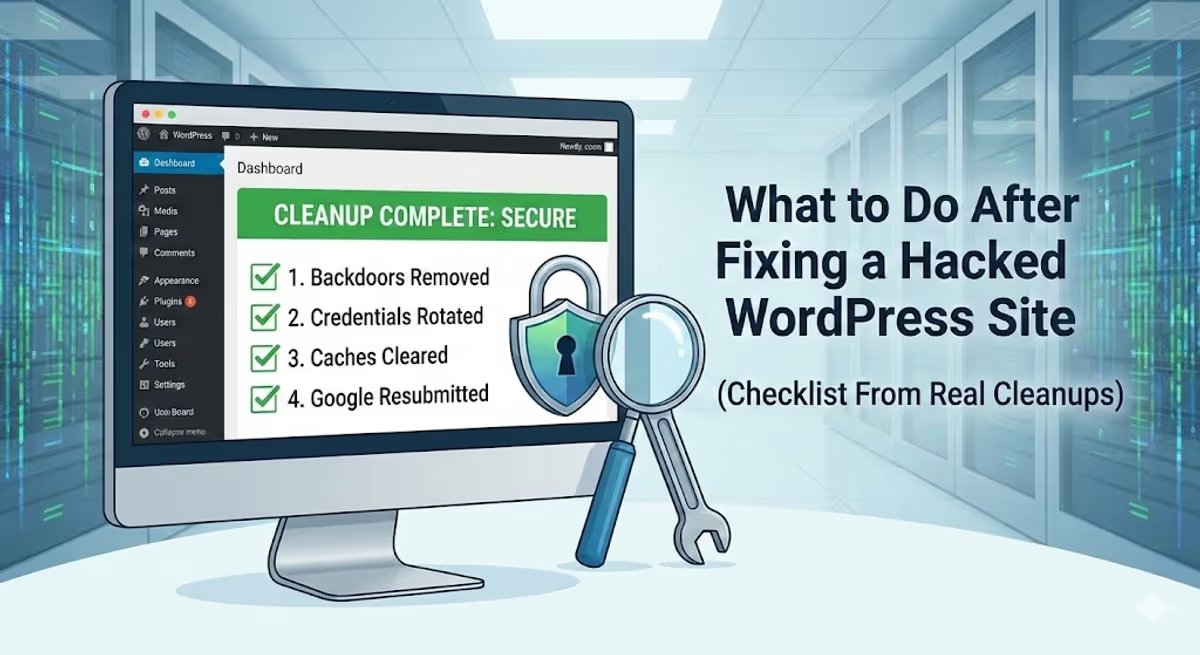
Quick answer: The first 72 hours after a WordPress malware cleanup are when most reinfections happen — not because hackers are persistent, but because cleanups miss things. This is a forensic verification protocol (not another cleanup checklist) built from over 4,500 real cleanups. You’ll run file-integrity checks, database scans, log audits, and credential rotations on a strict timeline so you can prove the site is clean — not just hope it is.
Most “after a hack” guides on the internet are recycled checklists: change passwords, update plugins, install Wordfence, done.
That is not what saves a site after a real-world hack.
After cleaning over 4,500 hacked WordPress sites on Upwork, Fiverr, and direct client work, I can tell you that cleanup is the easy part. Verification is what separates a permanent fix from a 48-hour relapse. The reason sites get re-hacked isn’t because hackers came back — it’s because the cleanup left a door open and the site owner stopped watching too soon.
This is the exact 72-hour protocol I run after every cleanup. Timeline-based. Command-driven. Built specifically to catch the things “remove malware and harden the site” advice never finds.
The 72-Hour Reinfection Window: Why Timing Matters
From the cleanups I have personally worked on, when a site gets reinfected, it almost always happens within the first three days after cleanup. Once you make it past the 72-hour mark with active monitoring in place, the chance of immediate reinfection drops dramatically.
Here is roughly how reinfection causes break down across the cases I have cleaned:
- Missed scheduled tasks (cron jobs) that re-download malware on a timer
- Hidden admin users sitting in the
wp_usersdatabase table that no one checked - Backdoors hiding in non-obvious locations like
mu-plugins/,wp-content/uploads/, or as fake plugin folders - Cached malware served by Cloudflare, Varnish, or a CDN even after the files are clean
- Compromised hosting/FTP/database credentials the cleaner never rotated
None of those are caught by “the malware was removed” scans. They need verification, which is fundamentally different from cleanup. I cover the persistence mechanisms in detail in Why WordPress Malware Keeps Coming Back — this guide focuses on what to do once the cleanup is technically done, hour by hour.
The Mindset Shift: “Cleaned” vs “Verified”
A “cleaned” site means visible malware was removed. A verified site means you have proven, with evidence, that:
- No backdoors are running silently
- No hidden users have admin access
- No scheduled tasks are armed to redownload malware
- No cached version of the infection is still being served
- No credentials the attacker had access to are still active
Most automated scanners only confirm the first point. The other four require manual forensic checks. That is what the next 72 hours are for.
Hour 0–1: The Lockdown (Force Everyone Out)
Before anything else, you have to assume every credential, cookie, and session associated with this site is compromised. Even if you changed the WordPress password, an attacker may still hold a valid login cookie.
Step 1: Rotate WordPress Salts (Kicks Out All Sessions)
Salts are the cryptographic keys WordPress uses to sign authentication cookies. Change the salts, and every existing logged-in session — including the attacker’s — becomes invalid instantly.
Generate a fresh salt block from the official WordPress salt generator, then paste it into wp-config.php, replacing the existing block:
define('AUTH_KEY',         'paste-fresh-key-here');
define('SECURE_AUTH_KEY',  'paste-fresh-key-here');
define('LOGGED_IN_KEY',    'paste-fresh-key-here');
define('NONCE_KEY',        'paste-fresh-key-here');
define('AUTH_SALT',        'paste-fresh-key-here');
define('SECURE_AUTH_SALT', 'paste-fresh-key-here');
define('LOGGED_IN_SALT',   'paste-fresh-key-here');
define('NONCE_SALT',       'paste-fresh-key-here');
Save the file. Every active user session is now dead.
Step 2: Rotate the 5 Credentials That Matter
In order of severity:
- Hosting control panel password (cPanel / Plesk / hosting login)
- Database password — change it in cPanel, then update
wp-config.phpwith the new value - SFTP / FTP user passwords for every account on the hosting plan
- WordPress admin passwords for every admin-level user
- Email account passwords tied to admin emails (often the original entry point)
If you skip the email account, the attacker can request a password reset and walk back in.
Step 3: Audit the User Table Directly
The WordPress dashboard does not always show every user account. Sophisticated malware hides admin users from the UI. The only reliable check is querying the database directly.
Open phpMyAdmin and run:
SELECT ID, user_login, user_email, user_registered
FROM wp_users
ORDER BY user_registered DESC;
Then verify the role of each user:
SELECT u.user_login, m.meta_value
FROM wp_users u
JOIN wp_usermeta m ON u.ID = m.user_id
WHERE m.meta_key = 'wp_capabilities';
Anything you do not recognize — especially anything with administrator in the meta value — gets deleted from both wp_users and wp_usermeta. I have documented exactly how attackers conceal admin accounts in Find and Remove Hidden Admin Users in WordPress.
Hour 1–6: File Integrity Forensics
The lockdown is done. Now you verify that no rogue files, modified core files, or backdoor scripts are sitting in the file system.
Step 4: Run a WordPress Core Checksum Verification
WordPress publishes MD5 checksums for every official core file. WP-CLI compares your installed files against those checksums and flags any mismatch:
wp core verify-checksumsAny file flagged here has been modified from its official version. There is no legitimate reason for a core file to be modified. If wp-includes/load.php or wp-admin/includes/file.php shows up — replace it from a fresh WordPress download immediately.
Verify plugins the same way:
wp plugin verify-checksums --allStep 5: Hunt Recently Modified Files
If you do not have shell access, skip to Step 6. If you do, this single command finds every file modified in the last 7 days under your WordPress root:
find /home/user/public_html -type f -mtime -7 -ls | grep -v "wp-content/cache"Compare that list against your own activity. If you did not update plugins or change content, every modified file is suspicious. Pay special attention to:
wp-config.phpindex.phpin any directory (especiallywp-content/,wp-content/plugins/,wp-content/themes/)- Any
.phpfile insidewp-content/uploads/— there is no legitimate reason for PHP to live in uploads .htaccessin any directory
Step 6: Grep for Backdoor Signatures
Backdoors usually rely on a small set of PHP functions to execute remote code. This command lists every file containing one of those functions:
grep -rPl --include="*.php" "(eval|base64_decode|gzinflate|str_rot13|assert)\s*\(" /home/user/public_html/wp-content/Some legitimate plugins use these functions, so expect false positives. Review the matches — anything in uploads/, anything with a randomly named file (e.g. x_8h7d.php), or any single-line PHP file is almost always malicious.
Step 7: Check the mu-plugins Folder
Must-Use plugins (wp-content/mu-plugins/) load on every page request and do not appear in the standard plugins list. Attackers love this folder. If you did not intentionally put files in there, the entire folder should be empty or non-existent.
ls -la /home/user/public_html/wp-content/mu-plugins/If you see any file you did not put there, delete it. Here is a real example of a backdoor plugin I found in a client’s site — the same patterns apply to mu-plugins.
Hour 6–24: Database & Traffic Verification
Step 8: Scan the Database for Injected Code
Files can be clean while the database is still infected. Run these searches in phpMyAdmin against your wp_posts and wp_options tables:
-- Look for injected scripts in posts
SELECT ID, post_title
FROM wp_posts
WHERE post_content LIKE '%<script%'
   OR post_content LIKE '%eval(%'
   OR post_content LIKE '%base64_decode%';

-- Look for malicious autoloaded options (a common persistence trick)
SELECT option_name, LENGTH(option_value) AS size
FROM wp_options
WHERE autoload = 'yes'
ORDER BY size DESC
LIMIT 30;
The second query is the one most cleanup guides skip entirely. Attackers store payloads inside autoloaded option rows so they execute on every page load. Anything with a suspicious name (random characters, names like widget_cache_v2) and an unusually large value is worth investigating.
Step 9: Verify Site Behavior with curl (Not a Browser)
Browsers cache aggressively and may show you a clean version while real visitors still get the malicious one. Use curl to see the raw response your server actually sends:
# What desktop visitors see
curl -A "Mozilla/5.0 (Windows NT 10.0; Win64; x64)" -L https://yoursite.com/

# What mobile visitors see (mobile-only redirects are common)
curl -A "Mozilla/5.0 (iPhone; CPU iPhone OS 17_0 like Mac OS X)" -L https://yoursite.com/

# What Googlebot sees (cloaking attacks specifically target this)
curl -A "Mozilla/5.0 (compatible; Googlebot/2.1; +http://www.google.com/bot.html)" -L https://yoursite.com/
Compare the three responses. If the Googlebot response contains spam keywords, links, or a redirect that the desktop response does not — you have a cloaking infection that survived the cleanup. This is exactly how Japanese keyword hacks evade detection; my full breakdown is in The Japanese Keyword Hack: Detection, Removal, and Prevention.
Step 10: Purge Every Layer of Cache
“My site shows the warning even though I cleaned it” is almost always a cache problem. The order matters:
- WordPress cache plugin (WP Rocket / W3 Total Cache / LiteSpeed) — purge all
- Server-level cache (NGINX FastCGI, Varnish, LiteSpeed) — flush from the hosting panel
- Object cache (Redis, Memcached) — restart or flush
- CDN cache (Cloudflare → Caching → Configuration → Purge Everything)
- Browser cache — test in incognito and on a device that has never visited the site
Day 1–3: SEO Damage Audit
This is the part most cleanup guides skip entirely, and it is the part that costs site owners the most money long-term. Even if your files are clean, Google may still have thousands of spam URLs from the hack indexed under your domain.
Step 11: Check Google Search Console for Manual Actions
Log in to Google Search Console and check:
- Security Issues tab — if there is a banner, you are still flagged. Don’t request review yet; do the rest of this audit first.
- Manual Actions tab — separate from Security Issues; covers spam penalties.
- Pages → Indexing report — sort by date. A spike in indexed URLs means hacker-created spam pages are still in Google’s index.
Step 12: Find and De-Index Spam URLs
Run this Google query to see what spam URLs are indexed under your domain:
site:yoursite.comThen narrow down with common spam patterns:
site:yoursite.com viagra
site:yoursite.com 通販
site:yoursite.com casino
site:yoursite.com matbet
For each spam URL that returns a 404 (the cleanup deleted the malicious page), submit it to Google’s Removals tool in Search Console. For URLs you cannot find an obvious match for, check your sitemap and re-submit a clean one. I documented exactly how I removed 10,500 spam URLs in 12 days here — the same playbook applies to any volume.
Step 13: Request Blacklist Reviews (If Applicable)
If your site was flagged by any of these, you need to request a review from each one separately:
- Google Safe Browsing — Search Console → Security Issues → Request Review
- McAfee SiteAdvisor — submit at trustedsource.org
- Norton Safe Web — submit at safeweb.norton.com
- Sucuri SiteCheck — submit a re-scan request
If you are stuck in a blacklist loop, my blacklist removal service handles the review submissions and re-scan management end-to-end.
Day 3–7: Behavioral Monitoring
The first three days verify the cleanup. The next four watch for reinfection signals.
Step 14: Audit Cron Jobs (WordPress and Server Level)
WordPress cron and server cron are different things. Both can be hijacked.
For WordPress cron, install WP Crontrol and review the events list. Look for:
- Hooks with random names (
xys_check_update,wp_eval_payload) - Hooks scheduled to run very frequently (every 5–10 minutes)
- Hooks with no associated function
For server cron (if you have SSH):
crontab -l
# And for the web user
crontab -u www-data -l
Anything calling a PHP file in wp-content/uploads/, anything with wget or curl downloading remote files, anything with a base64-encoded string — kill it immediately. I cover cron-based reinfection in depth in WordPress Cron Job Malware.
Step 15: Watch Server Access Logs for Probing
Attackers who got in once usually probe again to see if their backdoors still work. Watch the access log for repeat hits to the locations they used:
tail -f /var/log/nginx/access.log | grep -E "\.(php)" | grep -v "wp-cron"Or for Apache:
tail -f /home/user/access-logs/yoursite.com | grep "\.php"Suspicious patterns to flag:
- Repeated requests to the same odd PHP file
- POST requests to files in
wp-content/uploads/ - Requests with long base64-looking query strings
- Repeated requests from the same IP across a short time window
Step 16: Re-Scan with a Different Tool Than the One That Found It
Each scanner has blind spots. If Wordfence cleaned the site, run a Sucuri SiteCheck and a MalCare scan. If MalCare did the cleanup, run Wordfence. Different signature databases catch different things.
Week 1+: Long-Term Monitoring Setup
Past 72 hours, the goal shifts from active verification to passive monitoring. Set up the following so the next attempt is caught before it becomes another cleanup:
- Daily off-site backups — never store backups on the same server as the site. My UpdraftPlus walk-through is here.
- File change monitoring — Wordfence Premium, Patchstack, or a managed WAF will alert you the moment a core file is modified.
- Login activity alerts — get an email every time an admin logs in. Catches credential reuse fast.
- Quarterly password rotation for all five credential categories listed in Step 2.
- 2FA on the hosting account, the WordPress dashboard, and the admin email — the three places attackers go first.
If you want a deeper hardening pass, my full WordPress security checklist is here.
The 7 Signs Your Cleanup Actually Failed
If any of these show up in the 72-hour window, the cleanup was incomplete and you are already being reinfected:
- A new admin user appears in
wp_usersthat you did not create - Files you deleted reappear (almost always a cron job)
- Server CPU spikes for no obvious traffic reason
- Search Console flags new spam URLs being indexed
- The
siteurlorhomevalues inwp_optionschange on their own - Mobile visitors get redirected but desktop does not
- Your hosting provider sends a fresh malware notice
If any of these happen — stop trying to clean it incrementally. The infection is regenerating from a backdoor you have not found, and continuing to react keeps you behind the attacker. Get a forensic audit instead.
Frequently Asked Questions
How do I know if my WordPress malware cleanup actually worked?
Run the seven verification checks in this guide: salt rotation, credential rotation, hidden user audit, core checksum verification, modified file scan, database scan, and curl-based behavioral testing. If all seven pass and the site is still clean 72 hours later, the cleanup held.
How long should I monitor my WordPress site after a hack?
Active monitoring for 72 hours, passive monitoring for 30 days. The first three days catch immediate reinfection from missed backdoors; the next 27 catch slower attacks that wait out your initial vigilance.
Why does my WordPress site keep getting hacked even after I clean it?
You are missing the persistence mechanism. The most common ones are scheduled cron jobs that re-download the malware, hidden admin users in the database, or a backdoor file in mu-plugins or uploads. I cover the full breakdown here.
Should I rebuild my WordPress site from scratch after a hack?
Only if your backups are also infected or older than the hack itself, or if cleanup keeps failing despite multiple attempts. A clean rebuild is sometimes faster than chasing a determined infection — but for the vast majority of cases, a verified manual cleanup is enough.
Do I need to tell Google my site was hacked?
Only if Google flagged you with a Security Issue in Search Console. Otherwise, requesting a review draws attention to a problem Google may not have noticed. Clean the site, verify it is clean, then continue submitting your normal sitemap. If a flag does exist, request the review only after every step of this protocol passes.
Can a hosting provider tell me my site is clean?
They can tell you their scan did not find malware, which is not the same thing. Hosting scans look for signature-based file infections; they rarely check the database, hidden users, cron jobs, or behavioral cloaking. Treat a “your site is clean” notice from your host as one data point, not a final answer.
Need a Forensic Audit Instead of a Checklist?
If your cleanup keeps failing, if malware keeps coming back, or if you just want a second set of expert eyes on a site you have already cleaned — that is exactly what I do. I have personally cleaned and verified over 4,500 hacked WordPress sites.
Real reviews from clients I have worked with:
“I’m very satisfied with MD Pabel service. He can save my site from hackers and remove all malware attacks. Highly recommended.”
— Hassan Infinkey, eCommerce Owner ★★★★★
“My website was suffering from some redirect malware. MD was able to take care of the problem for a reasonable fee. For me, he was a lifesaver. I will certainly go to him first should something like that happen again.”
— Kendall Miller, Founder ★★★★★
“Thanks for giving me a great support. You are a very nice team.”
— Usama Javed, WordPress Agency ★★★★★


